
Last Updated on November 1, 2026 by Daniel Osakwe
There’s a lot of talk about factory resetting a computer. A lot of people wonder how to factory reset a computer. If you have forgotten your password or it just is not working well, you can easily run a factory reset on your PC.
There are several reasons for factory resetting a computer. It might be that the computer is slow, infected with a virus, or maybe you want to sell it. Irrespective of why you want to reset your computer, we’ve got all the steps you’ll need to carry out this task below.
Note: Thises steps work on all versions of windows including the new Windows 11 version.
- See our guide on how to factory reset a Mac
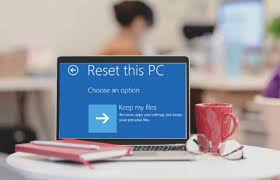
Table of Contents
The Windows 11 recovery settings
- Click Settings > System > Recovery in Windows 11 (or Settings > Windows Updates > Advanced options > Recovery).
- Next to the Reset this PC option, click Reset PC.
The Windows 10 recovery settings
- In Windows 10, launch the Settings window by clicking the Start menu, then choosing the gear icon in the lower left corner.
- The Settings app is another option from the app list.
- Select Get started under Reset this PC after clicking Update & Security > Recovery under Settings.
Select What to Delete
You can select Keep my files on either OS to keep only the downloaded programs and settings. This is advised if you’re trying to roll back an issue because it will protect your private files.
Choose to Remove everything to completely wipe the disk clean by erasing downloaded apps, settings, and personal files if your drive is beyond saving or you intend to dispose of the machine.
Options for Reinstallation
You must learn how to reinstall Windows before pressing the reset button. If you would rather install Windows manually from local storage, select Local reinstall.
Click Cloud download to download files straight from Microsoft’s servers if you desire a simpler method. This method is intended to be a quicker and more dependable alternative to booting from a USB stick, although it does require more than 4GB of free storage space.
Customize Further Settings
Depending on what you chose, there are a few further variables you can adjust after making your selections.
- To view your options, click Change settings on the Additional settings screen.
- The PC will revert to its factory default settings and programs if you decide to keep my data.
Note: Restore preloaded apps must be disabled in order to modify this.
Windows will remove all of your files if you select the Remove everything option. The quickest way to delete your personal files is to choose this default option. This is less secure, though, because the correct software can recover those files. You’ll need something stronger if you want to sell the machine.
- To make sure that your files are actually replaced rather than simply erased, turn on the switch under Clean data.
- This will take more time than the default selection, but if you have a few extra hours, it will be worthwhile.
Although you had decided how you wanted to reinstall Windows, you can reconsider this option.
- Change the Download Windows? option’s status. You can switch to a remote download of the operating system by selecting Yes.
- There will also be a choice to decide if any further installation drives should be wiped if you have any.
- If specific configurations have been established through your company, there may be another alternative for eliminating workplace resources.
- Before making a change, consult the IT department at your organization.
Reset your device
Once you’ve made all of your selections, click Next to have Windows create a screen that lists them all. You can view a list of the apps that will be uninstalled with the reset if you chose to Keep My Files.
- Click Reset when you’re prepared to commit. After some time, your computer will reboot and start up once more.
- Your work is finished if you are getting rid of the computer. If not, log back into Windows and verify that whatever you chose to remove has been erased from the system.
- Your files can now be restored to the computer if you previously backed them up using a Recovery Drive or an online backup service.


