Last Updated on November 1, 2026 by Daniel Osakwe
How to Factory Reset a Mac (Macbook and Probook).
A factory reset is a way to remove all your personal data from your Mac. It’s a quick and easy way to start a new, blank slate, and it’s a good way to troubleshoot any problems that may be occurring.
A factory reset is different from a complete reinstallation of the operating system, which involves copying all of your data from your computer to a new drive or hard drive. When you reinstall, you also have the option to import your data from the old drive or hard drive.
How to reset a MacBook Air or MacBook Pro
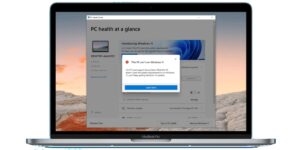
To factory reset a Mac, you need to connect your Mac to a power source, then follow the instructions below to learn how.
- Turn on the Mac by pressing and holding the Command and R keys on the keyboard. When the Apple logo appears, release
- Choose a language, then proceed.
- Select Disk Utility, then press Continue.
- From the sidebar, select your startup disk, which is by default called Macintosh HD, and then click the Erase button.
- Select Mac OS Extended (Journaled) from the dropdown menu, then click Erase after deciding on a name for the disk once it has been erased. (Select “Journaled, Encrypted” if you want to encrypt your disc for added protection. You will be asked to set up a password.) Consider using GUID Partition Map.
- To close the window, select Done after clicking Erase.
- Connect to Wi-Fi in the top right corner, if you haven’t already, exactly like you normally would on your Mac.
- Select Reinstall macOS from the main menu, then select Continue.
- Press Continue. There will be a pop-up window; select Continue there as well.
- Click Agree after reading the software license agreement.
- After selecting your boot disk, click Install.
- Watch for the installation’s first stage to take place.
- Rebooting the machine will resume installation.
Getting ready for a MacBook reset
Although the previous tutorial concentrated on resetting your MacBook, there are recommended steps to follow prior to factory reset that you should be aware of. By following these recommendations, you can avoid losing any private documents, images, or applications when switching from one MacBook to another.
Before you reset your MacBook Air or MacBook Pro, take a look at the following.
- Make a backup of your MacBook: The significance of this action cannot be overstated. Your most important files will be protected if you make a backup. Your data will be lost when you execute a factory reset if you didn’t back it up first.
- Log off iTunes: Deauthorize This Computer under Account > Authorizations. You can skip this step if you’re using the most recent version of macOS.
- Log out of iCloud: Select System Preferences from the Apple menu, then select Apple ID. From the side panel, select iCloud, then deactivate Find My Mac. Click Overview and Sign out after that.
- Log out of iMessage: Open the Messages app and select Preferences from the menu. To sign out of iMessage, click it.
- Disconnect Bluetooth devices: Select Bluetooth under System Preferences in the Apple menu. You may unpair headphones, keyboards, and other Bluetooth-capable accessories here.
Final thoughts
You now understand how to reset a Pc or laptop, including a MacBook!
There is no need to worry about the new owner accessing your files or programs if you are ready to sell your computer at this point. Follow the instructions as if you were first configuring your MacBook to return to the desktop.
If your old Mac is still giving you trouble and you’ve decided you want to change, have a look at our list of the finest MacBooks currently on the market, or head directly to Amazo to pick a new device. You can also head to eBay to buy pre-owned MacBooks.


