Last Updated on November 1, 2026 by Daniel Osakwe
How to rotate computer screen?
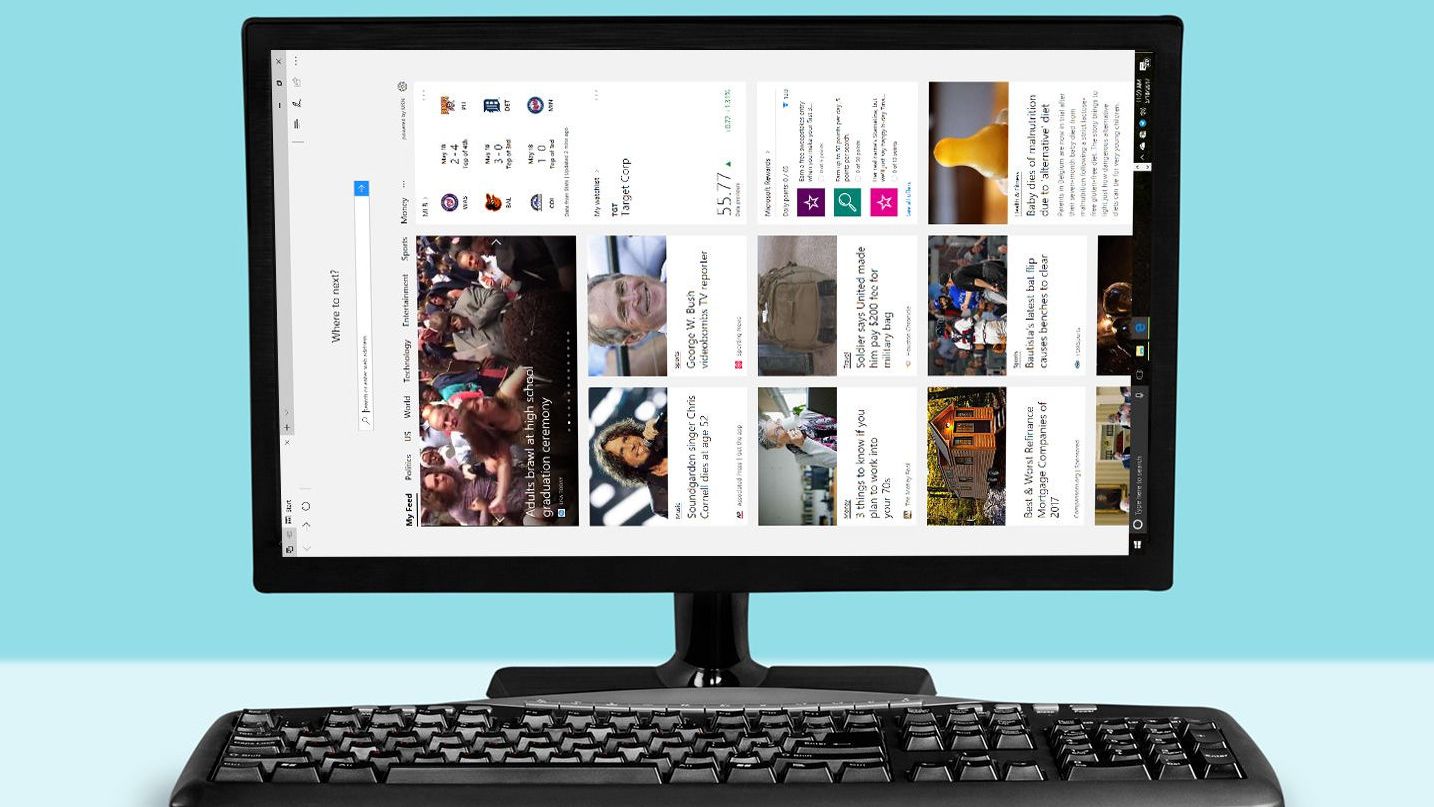
There are many situations where you need to see the same image on both the left and right sides of a computer monitor. The screen rotation feature in windows 10 or MacBook enables the users to flip their computer screens in different directions.
There are several steps that you need to take to change the display of your computer screen. Whether you use a Windows or Macbook system, we’ll show you how to rotate computer screen in this post.
Table of Contents
Why would you want to rotate the screen on your monitor?
It’s possible that you accidentally struck a key combination on your keyboard because your computer screen is now backward.
You might also want to evaluate a design or other project in portrait and reverse-landscape modes if you work with infographics frequently or if you are a designer. You would have to turn your computer screen to accomplish it.
How to rotate computer screen in Windows 10
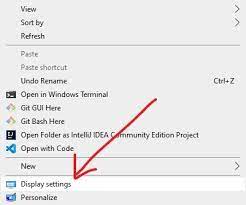
- First, perform a right-click on the Windows Desktop in an empty area and choose Display Settings.
- Next, Select a display orientation from the menu.
- Decide which orientation you prefer. There are four options available: reverse-landscape, portrait, and landscape (the standard).
- Next, Press the “Keep Changes” button to save your modifications. Click “Revert” to return to the previous position.
In 15 seconds, the orientation will change back to the default setting if neither of the two alternatives is selected.
How to Rotate Computer Screen on a MacBook Pro
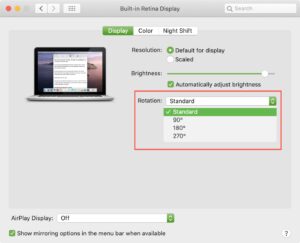
After tipping the computer on its side, you may adjust the angle of the built-in MacBook Pro display to read the screen like a book. You can adjust the orientation such that the screen fits the physical orientation of your MacBook using a secret feature in System Preferences. When you want to set the device on its side and see a bigger viewable surface for work documents and other stuff on your MacBook, this setting offers a beneficial option.
- Open “System Preferences” by choosing it from the Apple menu or by clicking the icon for it in the Dock.
- Click the “Display” icon in System Preferences while all at the same time pressing and holding the “Command” and “Option” keys. When the Screens option section appears, let go of the keys.
- To rotate the screen by the chosen degree, choose “90,” “180,” or “270” from the Rotation drop-down box. When prompted, select the orientation.
Keyboard shortcuts
A faster approach to flipping your computer screen can be achieved by using the following keyboard shortcuts below;
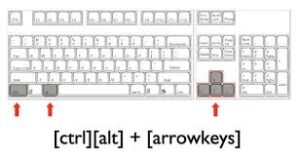
CTRL+ALT+Up Arrowfor landscapeCTRL+ALT+Right Arrowfor portraitCTRL+ALT+Down Arrowfor reverse-landscapeCTRL+ALT+Left Arrowfor reverse-portrait
Note: The most recent version of Windows 10 has disabled these keyboard shortcuts. However, older Windows versions ought to still support them.
- Check out our list of the best screen cleaners here.
Conclusion
You’ve learned how to rotate your Windows 10 and Macbook screen in this article. This will allow you to alter the position whenever you want and will assist you if you accidentally flip your screen.


