
Last Updated on November 1, 2026 by Daniel Osakwe
Before we begin, I would like to say this is not a tutorial on how to speed up your computer. This is a tutorial on how to check your PC specs.
If you want to learn how to speed up your computer, there are tutorials on that, but this will only take a couple of minutes.
There are plenty of ways to check your computer specs. Here are the four most common ways we’ve discovered for you.
Table of Contents
How to check your PC specs in Windows 10
Whether you purchased an off-the-shelf laptop or built a custom Windows computer, choosing each component for best performance, you may eventually need to know the exact details about what’s inside.
Windows provides you with the resources to determine your computer’s specifications, including information on your processor, video card, memory, and more. However, the data is dispersed throughout Windows in numerous, completely random locations.
Here are all Windows 10 offers for locating your computer’s specs.
How to Check Your PC Specs Using Control Panel.
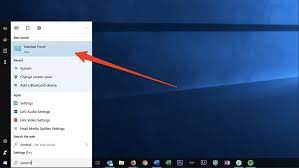
With only a few clicks, you can examine details about your CPU, installed RAM, and the Windows version you are using.
- Type Control into the search box after clicking the Start button.
- In the list of search results, select Control Panel.
- Then choose System and Security.
- Click System.
Note: The Control Panel page can also be accessed using the keyboard shortcut Windows key + Pause Break key.
How to See Your PC Specs Under Settings.
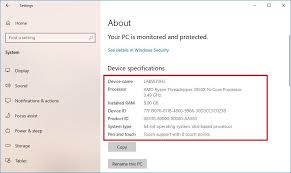
Similar data may be found in Settings, along with some more information regarding the Windows version you are using.
- Select Settings by clicking the Start button (it’s the gear-shaped icon just above the power icon).
- Click System.
- Click About.
How to Check Your Computer Specs Under System Information
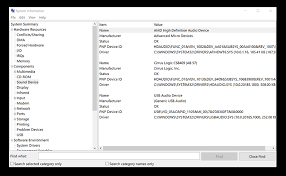
Windows’ System Information section contains considerably more comprehensive data about your pc.
- Type System Information into the Start search box.
- In the list of search results, choose System Information.
- The System Summary node on the first page contains the majority of the information you require. For more detail, you can also click each node in the left pane.
- Click Components and Display to view information about your video card.
Check Your PC Specs With the DirectX Diagnostic Tool
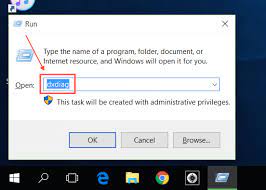
The DirectX Diagnostic Tool, sometimes known as DxDiag, is a program that comes with Windows that may provide comprehensive details on the video card and sound devices that are currently preinstalled.
- Type DxDiag into the Start menu by clicking it.
- On the search results page, click DxDiag.
- To view specific video card specifications, select the Display tab. To view information about your sound card, you can also click the Sound tabs. The same information found elsewhere is also present in the System tab.


