
Last Updated on November 1, 2026 by Daniel Osakwe
Windows 10 is a great operating system and it has many amazing features. However, sometimes you will need to change the computer password. This can be useful, for example, when you forget your password or when you suspect your password has been compromised. In this article, ill show you how to change computer password using any of the three options below.
Table of Contents
What is a password?
A password is a secret piece of information that is used to protect your computer. You can also use a password to secure your online accounts and the data on your computer.
Note: In Windows 10, you may always create a new password. We advise using a special mix of letters, numbers, and symbols. The ideal length for these passwords is often eight characters or more. Although we suggest using an alphanumeric password format because it is safer, you may alternatively change your password to a pin or photo if you want to check in to your Microsoft account more quickly.
How to change computer password in Windows 10

- On your screen, click the Start button in the lower left-hand corner.
- On the left-hand list, select Settings.
- Choose Accounts.
- From the menu, select Sign-in options.
- Under Change your account password, select Change.
- You must log in using your current Microsoft account password in order to change your password.
- In the box, enter your password. Press Sign in.
- Microsoft will call the number associated with your account to provide you with a new code to change your password.
- Enter the last four digits of your phone number to confirm that it is accurate.
- Put in the key.
- A code will be sent to your phone.
- Type the code in.
- You’ll be directed to enter your old password on a new page before entering your new one.
- Retype the new password. Hit the Enter key.
- You have successfully changed your password if you see this message!
How to change your computer password to a PIN
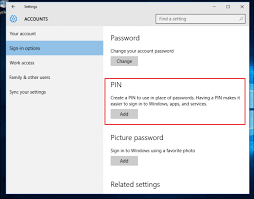
- To change your current password, go through steps 1 through 4 shown above.
- To add a PIN, select Add under Sign-in choices.
- You must log in using your current Microsoft account password in order to change your password.
- In the box, enter your password.
- Press Sign in.
- Retype your pin in the second box after entering a new one in the first.
- Select OK. This pin can now be used to access your Microsoft account.
How to change computer password to a picture password
- Take the actions listed under “Change Your Current Password” above, 1 through 4.
- Click Add next to Picture Password under Sign-in choices.
- To confirm that it is truly your account, enter your Microsoft account password.
- Select OK.
- Select a photo by clicking. Pick a picture from your collection.
- If you prefer it, select Use this photo; otherwise, select Choose New Picture. Your image can be moved about whatever you like by dragging.
- For your image password, you will need to set up three gestures. (circle, straight lines, or tabs)
You’ve successfully established your photo password if you see this message! When you sign in to your Microsoft account, this picture will appear. You may sign in by simply going back and making the same motions.
Final thoughts
We trust you now know everything there is to know about changing your Windows 10 password. For more advice, continue reading below and take a look at our guide on how to create a strong password no hacker can break in Windows 10.


