
Last Updated on November 1, 2026 by Daniel Osakwe
How to Upgrade RAM in PC.
Are you eager to master the art of upgrading your PC’s RAM? Look no further! In this comprehensive guide, we’ll walk you through the entire process, covering everything from the basics of removing and installing RAM modules to more advanced considerations like choosing the right capacity and speed for optimal performance.
Table of Contents
The Ultimate Guide on How to Upgrade RAM in PC
Getting Started: Safety First
Before diving into the hardware, ensure your PC is powered off and unplugged. Opening the side panel of your computer is the next step, but don’t touch anything just yet. To avoid static discharge, touch a metal part of your computer case. While some recommend using an anti-static wrist strap, our method has proven effective in countless builds.
Removing and Installing RAM
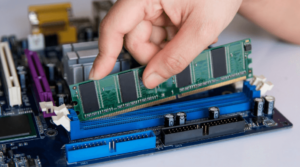
If you’re replacing existing RAM, unlock the latches on each side of the RAM stick and gently pull it out. For adding more RAM, open the retention latches, align the notch on your new RAM module, and slide it into the socket. Press down firmly until the latch locks into place.
Understanding Dual Channel Mode
Discover how to optimize your RAM configuration for peak performance. Depending on your motherboard, learn which DIMM slots to use for dual-channel mode, significantly enhancing memory bandwidth. We focus on the scenario most users encounter with four DIMM slots.
Choosing the Right RAM
Delve into the world of RAM specifications. I recommend pairing new RAM with the same brand, speed, and capacity as your existing modules to minimize compatibility issues. Mixing speeds and capacities may lead to system crashes and other problems. If upgrading, check your motherboard’s manual for the preferred RAM slots.
Memory Speeds and Capacities
Explore the intricacies of memory speeds, overclocking, and the current sweet spot for price-to-performance. Understand why choosing the fastest memory within your budget, supported by your motherboard, is a wise investment. Dive into the motherboard manufacturer’s Qualified Vendor List (QVL) for tested and verified RAM compatibility.
How to Upgrade RAM in PC: Final Tips
Learn from past experiences and avoid potential pitfalls. I share personal anecdotes and highlight the importance of sticking to reputable RAM brands. Discover the significance of the QVL in ensuring a smooth RAM upgrade process.
Conclusion
Armed with this comprehensive guide, you’re well-equipped to embark on a successful RAM upgrade adventure. Follow these tips, and not only will your PC run smoother, but you’ll also feel confident navigating the intricate world of RAM upgrades. Share your thoughts in the comments, and don’t forget to share, and subscribe for more insightful tech guides. Happy upgrading!


